Mµ256 Control

The Mµ256 page provides real-time monitoring of device operation. It is not a measurement interface. The available displays are informational (RMS activity, time signal, spectrum, octave bands, etc.) and are intended to verify proper operation of all microphones for different acquisition parameter values.
Control pages, however, allow real-time recording of signals according to the selected parameter configuration.
The Mµ256 control page is divided into two parts: a horizontal command menu bar at the top of the window and the displays below.
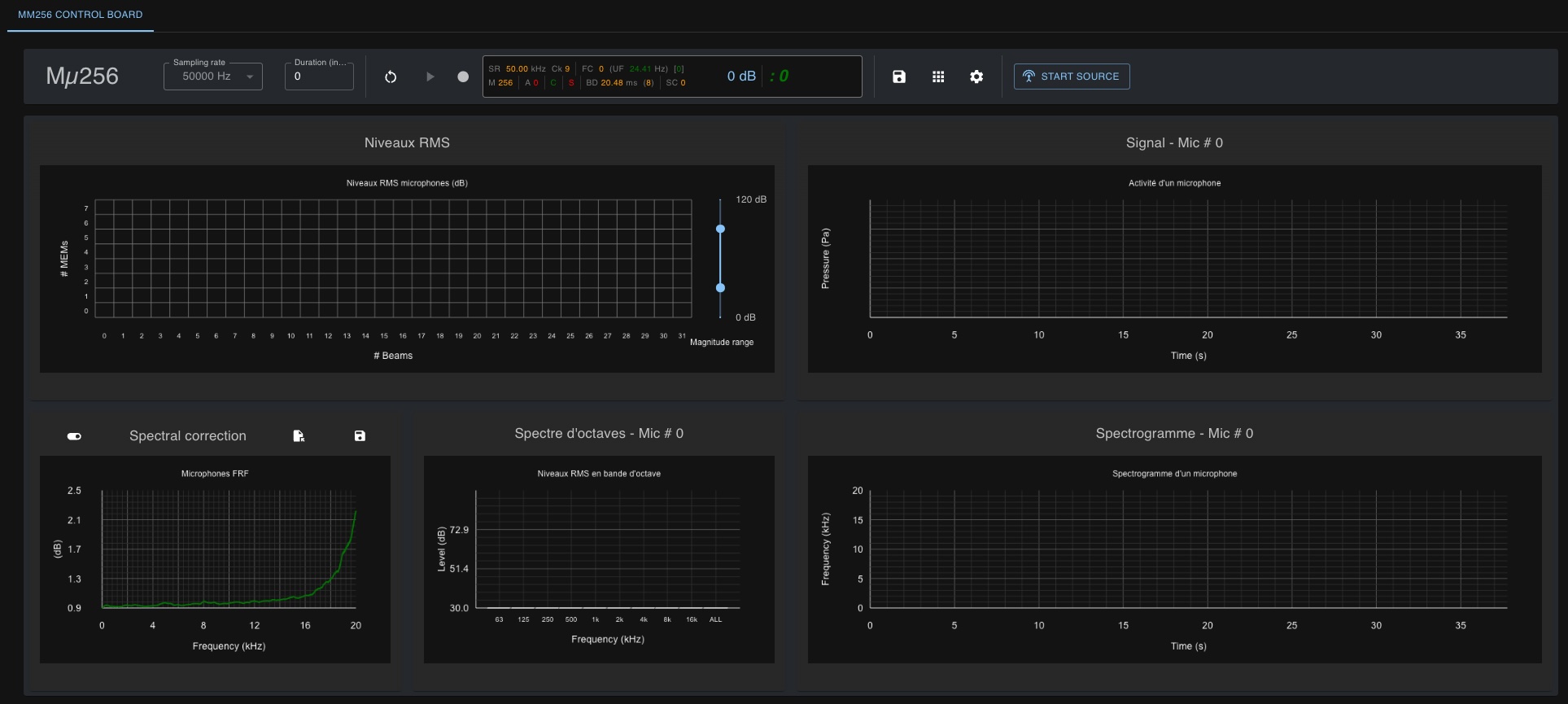
Menu Bar
The menu bar has three sections:
- acquisition setup buttons
- a status window showing current parameter states and activity
- Mµ256 controller configuration buttons

Acquisition Setup
Without changing anything else, you can immediately start acquisition and recording using only these buttons.
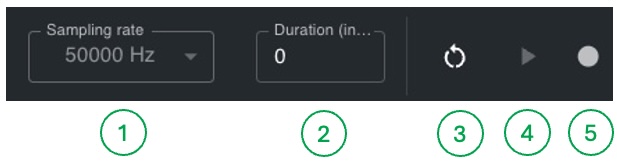
- Select the sampling frequency
- Select acquisition duration (
0means unlimited duration) - Full Mµ256 controller reset (use only if issues occur)
- Start acquisition
- Start recording
Start an Acquisition
You can start acquisition only if an Mµ256 controller is connected to your computer via USB.
On macOS and Windows, you must install the USB driver beforehand (see Getting started).
If both conditions are met, the green Mµ256 controller detection icon should appear at the top of the page in the icon bar.
Also, the acquisition start button (4) must be active (clickable, green).
Click the acquisition start button (4). It turns into an acquisition stop button while the counter starts running in the status bar. The MEMS RMS activity display should activate based on ambient acoustic activity.
Click the acquisition stop button again. The counter stops and acquisition ends.
During acquisition, the red acquisition LED on the Mµ256 unit should light up. This LED confirms at hardware level that acquisition is currently running.
Record
To record an ongoing acquisition, click the recording button. It turns red, indicating that data recording is in progress. Click it again to stop recording.
Recording is independent from acquisition. If you click BEFORE starting acquisition, recording starts only when acquisition starts. If you stop recording DURING acquisition, acquisition continues after recording stops. If you stop acquisition DURING recording, recording stops automatically.
Recorded signals are always raw concentrator signals (24-bit values encoded in 32-bit integers), regardless of processing applied on the control page.
Configure Acquisition
The three buttons below let you change acquisition and recording parameters. These parameters cannot be modified during acquisition. They become non-clickable.
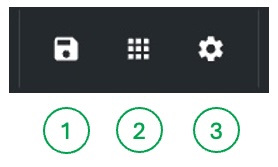
- Recording settings
- MEMS and analog channel activation for recording
- Acquisition settings
Recording settings let you define the output directory and recording file name. If you do not change these settings, default values are used.
By default, recording files are never overwritten. If you make multiple recordings without changing the file name, the current name is reused and automatically numbered to prevent overwriting.
The MEMS and analog channel activation button opens a channel selector that lets you choose which channels to record.
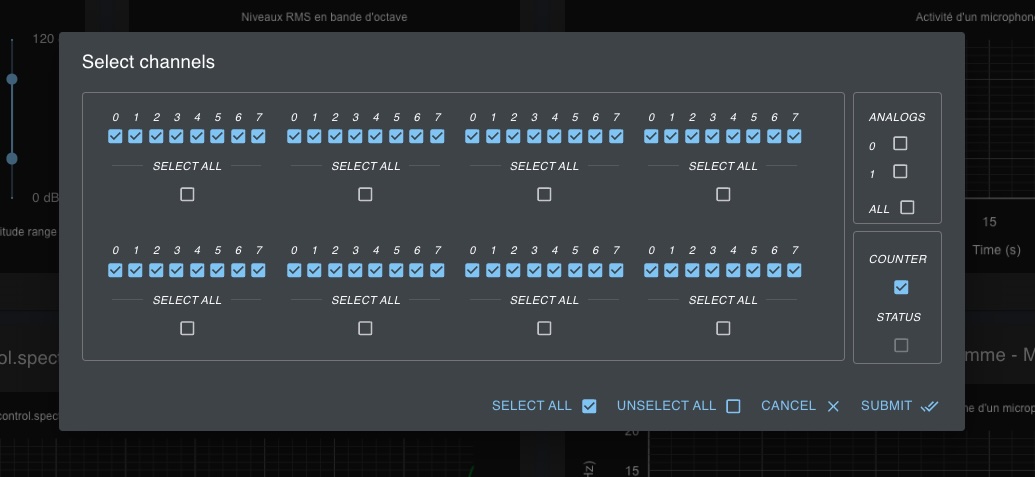
By default, all MEMS channels are selected, as well as the counter channel, but analog and status channels are not. You can change this selection as needed.
The status channel is not selectable in MµBoard versions up to and including 4.1.20.
In these same versions, the counter channel is always selected because it is used to verify data integrity.
Only selected channels are recorded during recording sequences. Note that activity from non-selected MEMS channels is not transmitted by the concentrator. These channels can therefore no longer be processed by the software.
You can close the window and discard your changes by using the CANCEL button or pressing ESCAPE on your keyboard.
The configuration button below opens a form that lets you adjust acquisition settings.
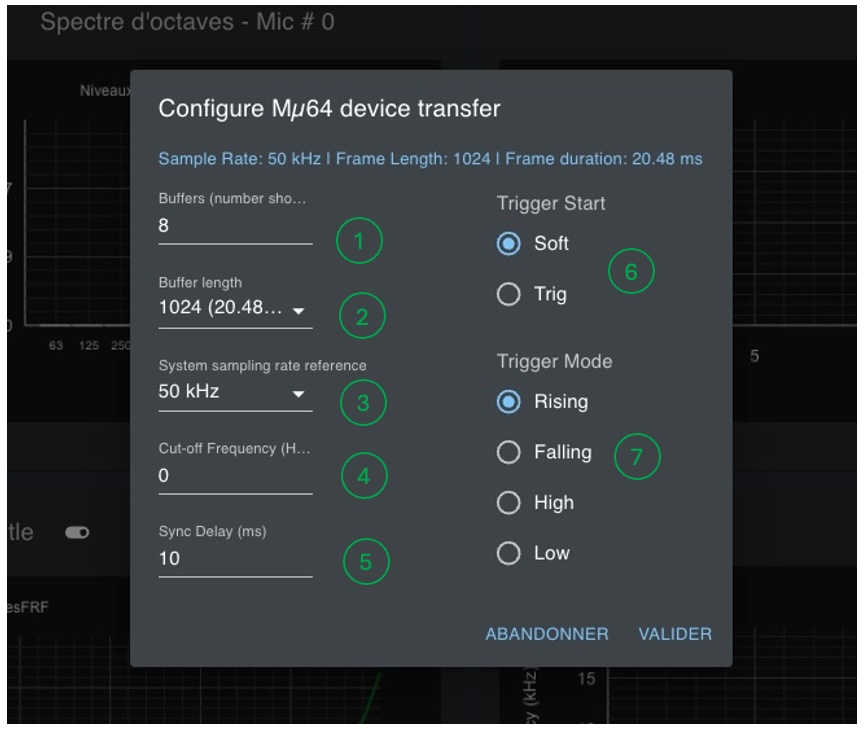
On the left side, it includes sensitive settings that, for some of them, should generally not be modified:
- Number of USB transfer buffers (default:
8) - Buffer size in samples (default:
1024) - Reference sampling frequency
- Spectrogram cutoff frequency
- Synchronization delay
The number of circular buffers determines real-time USB transmission quality.
There must always be at least two buffers to ensure lossless transmission.
The higher this number, the more reliable lossless transmission becomes, at the cost of potentially increased latency.
The default value is 8, which is sufficient for regular use (assuming the same USB bus is not heavily used by another bandwidth-intensive device).
Buffer size is left to the user. However, it affects signal processing performed by the control page. Energy and spectrum calculations are performed exclusively over this window length. That is why the corresponding time duration (depending on sampling frequency) is also displayed.
The reference sampling frequency must not be modified.
By default, it is set to the frequency programmed on the FPGA.
Our systems can be configured with a 50 kHz or 48 kHz reference frequency.
If you use 48 kHz as reference while the concentrator FPGA is programmed at 50 kHz, all estimated values in the software will be proportionally incorrect.
The spectrogram cutoff frequency lets you display the spectrum only below that frequency. This can be seen as low-frequency zooming and has no impact on recorded signals.
Synchronization delay must remain at its default value (10 for medium to large microphone arrays).
For very small arrays (very short cables), this value should be reduced.
Conversely, it should be increased for very large arrays.
An estimator for the optimal value of this parameter will be integrated in a future MµBoard release.
Status Window
The status window displays values for the main acquisition parameters.
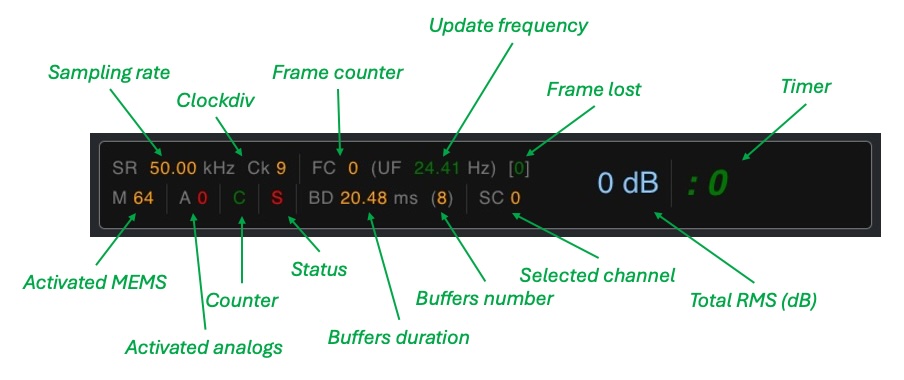
- Sampling rate: current sampling frequency
- Clockdiv: concentrator internal clock division factor used to derive the exact sampling frequency
- Frame counter: frame counter
- Update frequency: screen data refresh frequency
- Frame lost: number of frames lost during acquisition or since the beginning of the latest acquisition
- Timer: elapsed time in minutes and seconds since acquisition started
- Activated MEMS: number of active MEMS channels
- Activated analogs: number of active analog channels
- Counter: counter activation state
- Status: status line activation state
- Buffers duration: buffer duration in milliseconds
- Buffers number: number of allocated transfer buffers
- TotalRMS: average power in dB over all active microphones (excluding analog channels)
Displays
The second part of the page, below the control bar, shows a set of real-time measurements performed on signals coming from the concentrator.
RMS Levels and Selection
This window displays real-time RMS levels in dB for all MEMS channels.
The magnitude slider on the right adjusts the color scale used for power level display.
This slider also affects the spectrogram display.
Its lower and upper positions are set by default to 30 dB and 90 dB.
If you want a quick visual check of proper MEMS operation, set the lower slider to 0 dB.
All active MEMS channels should then show activity.
Otherwise, inactive MEMS channels belong to an unconnected beam, have been disabled, or are defective.
The checkerboard cells representing MEMS activity are clickable.
If you click one of the cells, the selected MEMS number appears in other window headers and in the status bar (Selected Channel - SC).
This means activities shown in those windows are measured on the selected MEMS.
By default, the selected MEMS is MEMS 0 (first microphone in the first beam).
Octave Spectrum
This window shows octave-band frequency analysis of the selected MEMS.
Signal
Activity of the selected MEMS. In this version of MµBoard, not all samples are displayed. For each received frame, only the minimum and maximum values of the signal measured over that frame are shown.
Spectrogram
This window displays the spectrum computed on frames as they arrive.
As stated above, acquisition frame size is used as the FFT window length.
The spectrum is displayed from the first frequency to the last (Fs/2).
The displayed frequency range can be modified in settings (see the settings button in the control bar).
Spectral Correction
This is the correction curve applied to the spectrogram before display.
The MEMS frequency response is approximately flat between 100 Hz and 10 kHz, but not between 10 kHz and 20 kHz.
This curve, measured in laboratory conditions on 1024 MEMS, provides the average correction required to recover an approximately flat response up to 20 kHz.
This correction is enabled by default.
You can disable it by clicking the button to the right of the window title.
The graph then changes from green to gray.
Spectral correction is not applied to recorded signals, only to the displayed spectrogram.