Getting started
In the following instructions, we assume that you already have a verified account on the readthedoc.bimea.io website. If this is not the case, please log in to that site. The first time you do so, you will be asked to reset your password. If you do not have a username and password, please contact us (contact@bimea.io).
Before You Begin
Since there is no signed USB driver for the system, you must install a compatible generic driver. The easiest way is to use the “Zadig” utility. This step is only necessary the first time you use the system with the PC. You must connect the acquisition system to the PC via a USB cable before launching Zadig.
The procedure for using “Zadig” is as follows:
- In the “Options” menu, select “List all Devices”;
- Select the acquisition system (“Mµ”); you can verify that the “USB ID” matches FE27 / AC03;
- Using the arrows, select the “WinUSB” driver;
- Click the “Replace Driver” button.
You can verify that the driver is properly installed using the Windows “Device Manager” utility. The “Mµ” system appears under the “Universal Serial Bus devices” section.
Version 2.5 of Zadig is available here zadig-2.5. However, it is best to download the latest version from the official website (for latest versions)
At startup
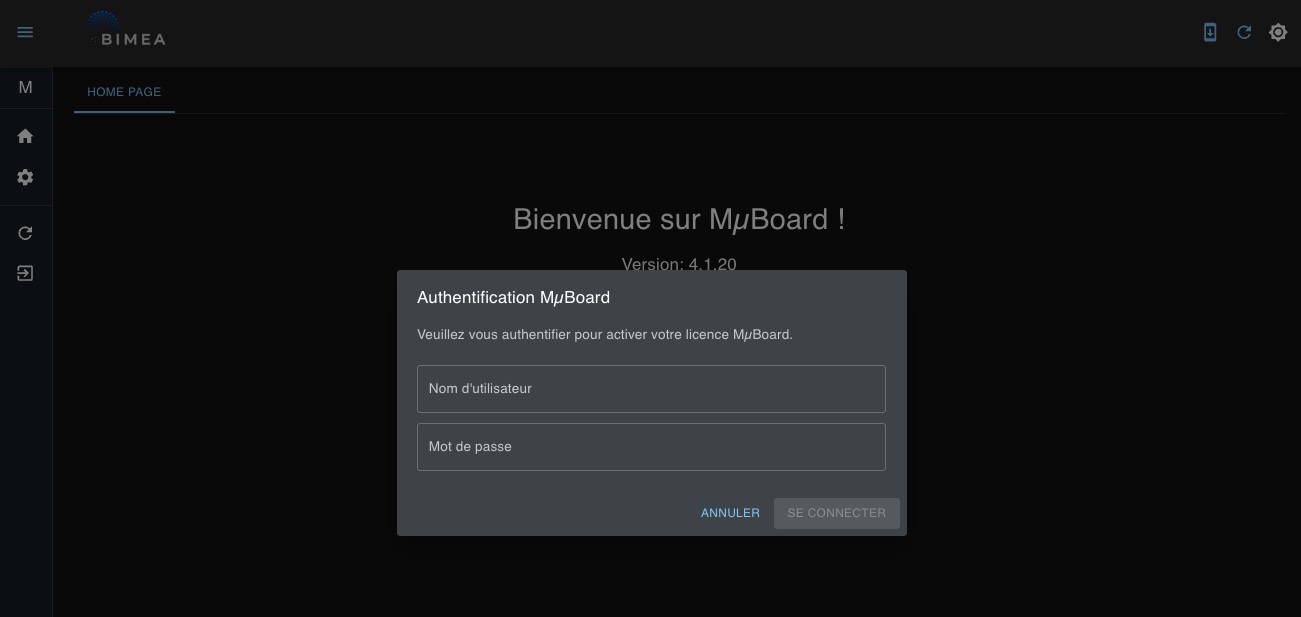
When you launch MµBoard for the first time, you are prompted to sign in to the platform. This sign-in is required to activate your license. You can then use the software with or without an Internet connection.
Updates
Your license also gives you access to updates. When you are connected, the software automatically checks for the latest updates. If a newer version is available, you can download it immediately.
Home menu
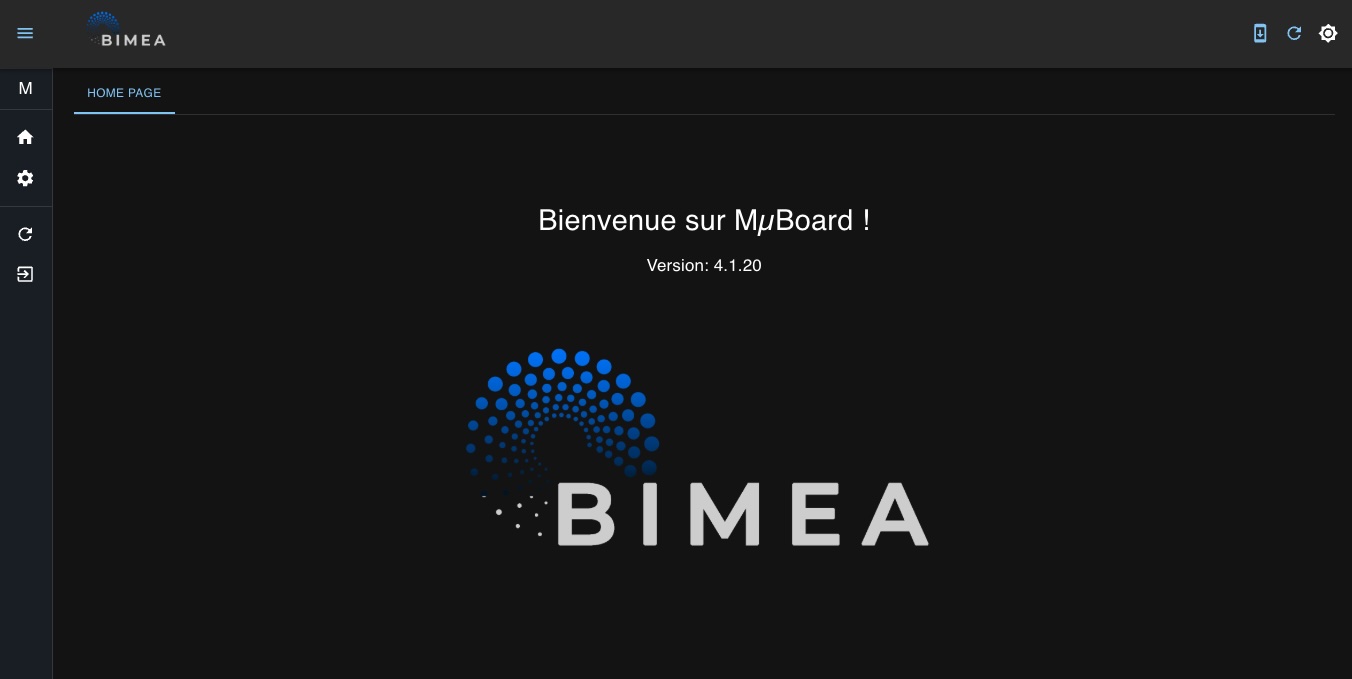
The home page does not contain any specific information. It mainly includes the left sidebar, which gives access to the different pages of the application, and the icon bar in the top-right corner to:
- Check for updates (the computer must be connected to the Internet)
- Refresh the license activation (or reconnect)
- Change display mode (dark mode or light mode)
It also displays the software version number.
The left sidebar, shown in detail below,
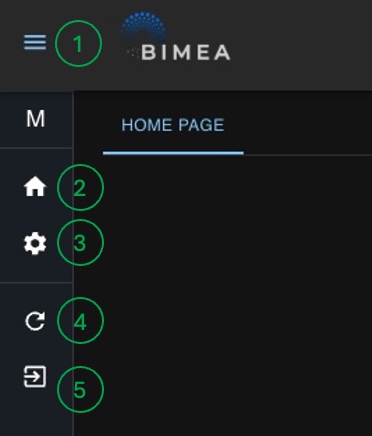
shows, on every MµBoard page:
- Open/close the menu in wide view
- Return to the home page
- Access configuration settings
- Refresh the license (same effect as the icon bar button)
- Quit the application
How it works
The license downloaded during the first sign-in is saved in the configuration file created by default in the user directory (./megamicros-muboard).
As long as this file exists, the MµBoard software can run without a network connection.
This is important for operating installations autonomously, without connectivity constraints.
The configuration file can be reset to its default values on the configuration page (3) by clicking RESET AND RESTART.
Except for resetting or changing the default language, the configuration page is not used up to version 4.1.20. In upcoming versions, it will allow adjustment of default settings for Megamicros systems.
Control pages
The icons in the left sidebar give you access to control pages for Megamicros devices. To keep the interface simple, only the icons for devices covered by your license are displayed, depending on the hardware you own.
In principle, the license is valid for all Bimea hardware. If you want to use MµBoard with other Bimea equipment available to you (hubs, sources, etc.), simply send us a request at contact@bimea.io.